Change Orders
Background
Change Orders are formal modifications to existing contracts that document changes to the scope of work, contract value, and/or schedule. In Site Specs, Change Orders can be created for both owner contracts (revenue) and subcontractor contracts (costs). Change Orders are typically generated from approved Request for Quotes (RFQs) and are used to formalize changes to the project scope, budget, and timeline.
Subcontractor Change Orders
Creating a Subcontractor Change Order
To create a Subcontractor Change Order, navigate to the Change Management tab within your project and find the CMI you want to create a Change Order from. You can select all of the line items you wish to include in the subcontractor's change order. As you select line item's you will notice only the available options remain enabled (i.e. 'Subcontract CO', 'Owner COR', 'Send RFQ').
NOTE: Site Specs will not allow you to use line items in more than one Subcontractor CO, Owner COR, or Owner CO.
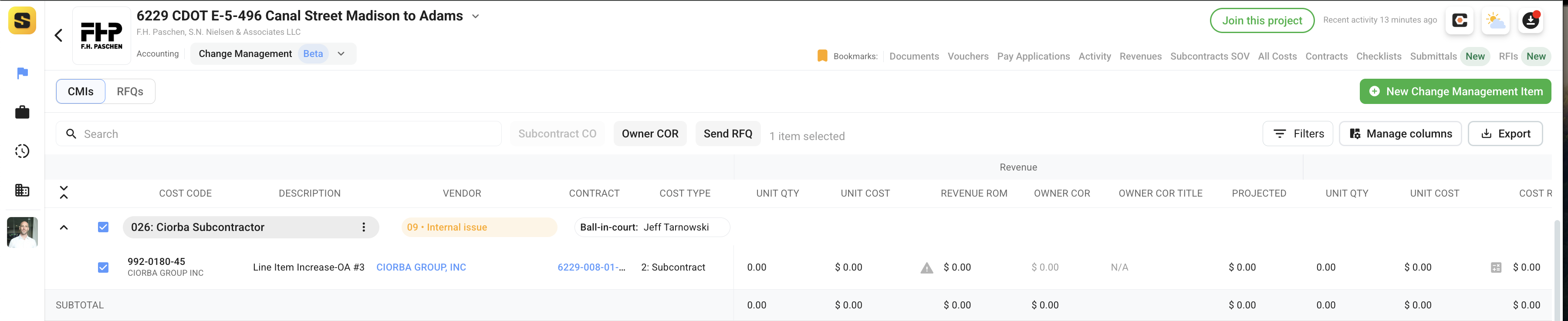
Click on the "Subcontract CO" button to initiate the process.
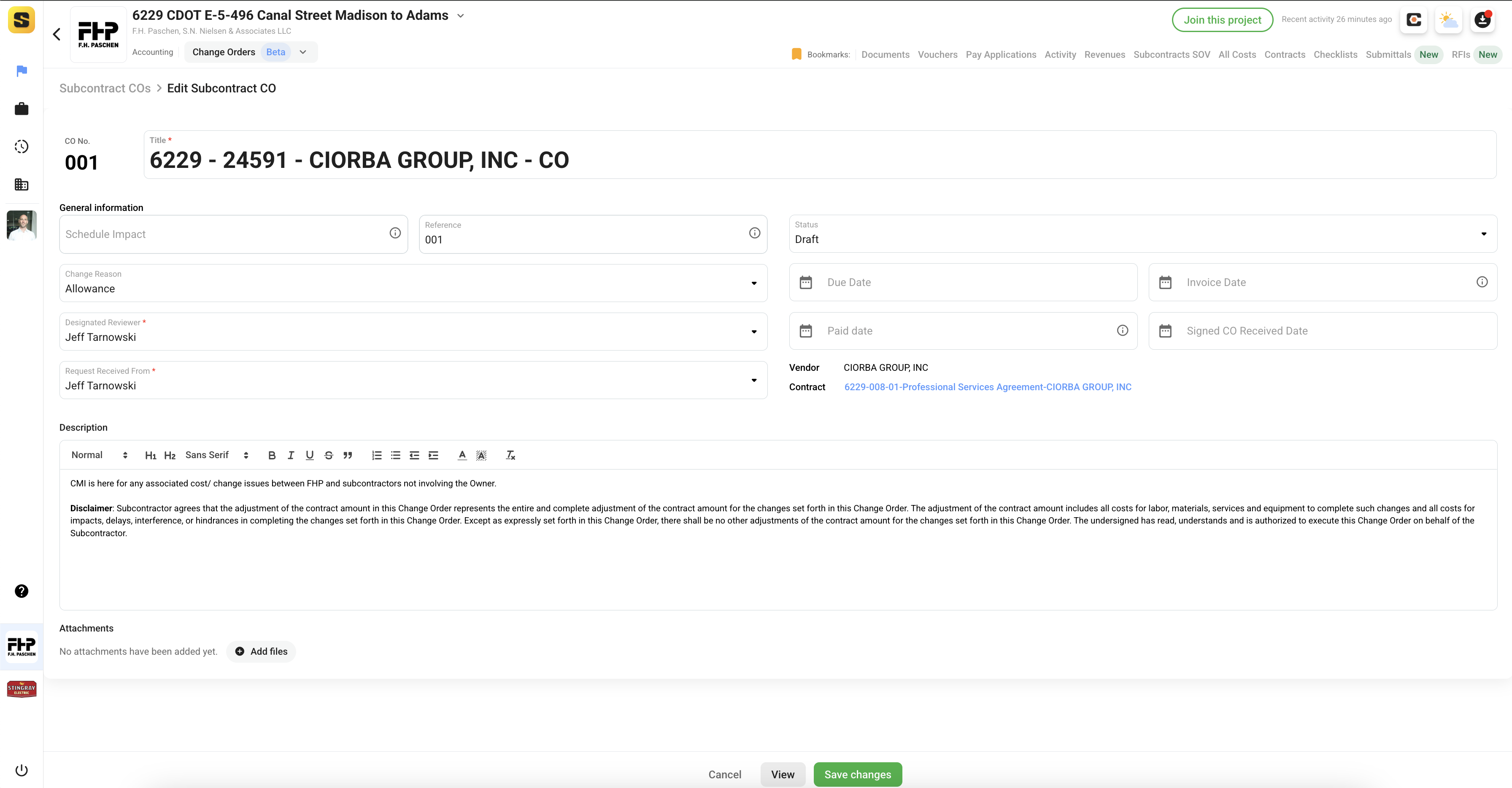
On the Subcontract Change Order creation form, you will notice the following fields.
Required Fields
- Title - A clear and descriptive name for the Change Order
- Designated Reviewer - The person with authority to review and approve the Subcontract CO
- Request Received From - The originator of the Change Order (often the subcontractor)
- Status - Current status of the Change Order
- Contract - The subcontract being modified
- Vendor - The vendor/subcontractor receiving the change order
Optional Fields
- Schedule Impact - Number of days added to the subcontractors project schedule if change order is approved
- Reference - Reference to any tools, documents, or materials associated with the change order
- Change Reason - Reason for the change in scope, price and/or schedule
- Due Date- Date the signed subcontract is due
- Invoice Date - Date the change order was invoiced
- Paid Date - Date the invoice for the change order was paid
- Signed CO Received Date - The date the signed CO was returned to the Designated Reviewer
- Description - Detailed description of the change including a default disclaimer
- Attachments - Any relevant documents, drawings, RFIs, correspondences, etc
Once you saved your subcontractor change order, you can view the subcontractor change order details shown below.
General Tab
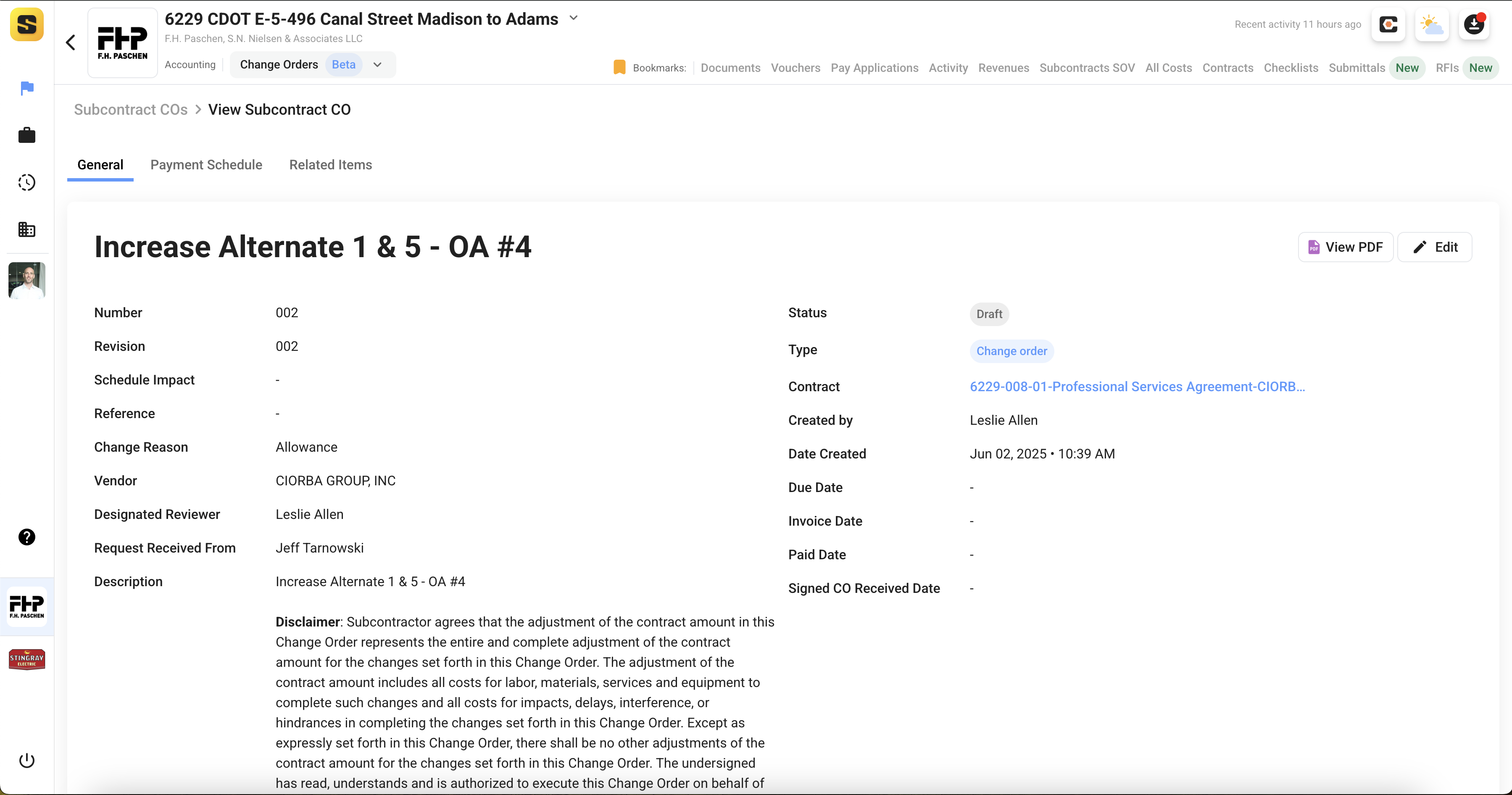
From the General Tab users can 'View PDF' to view the actual change order PDF document.
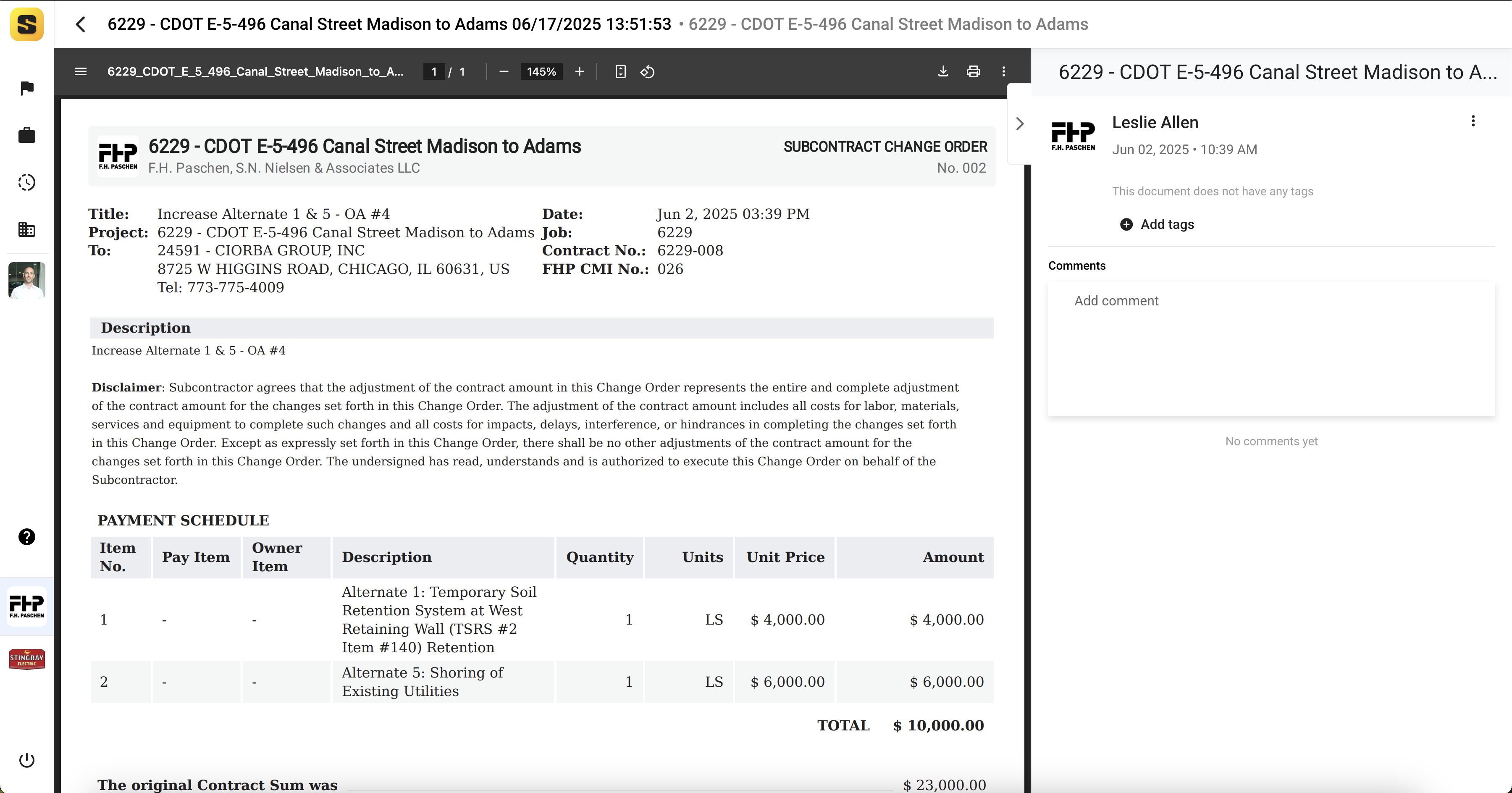
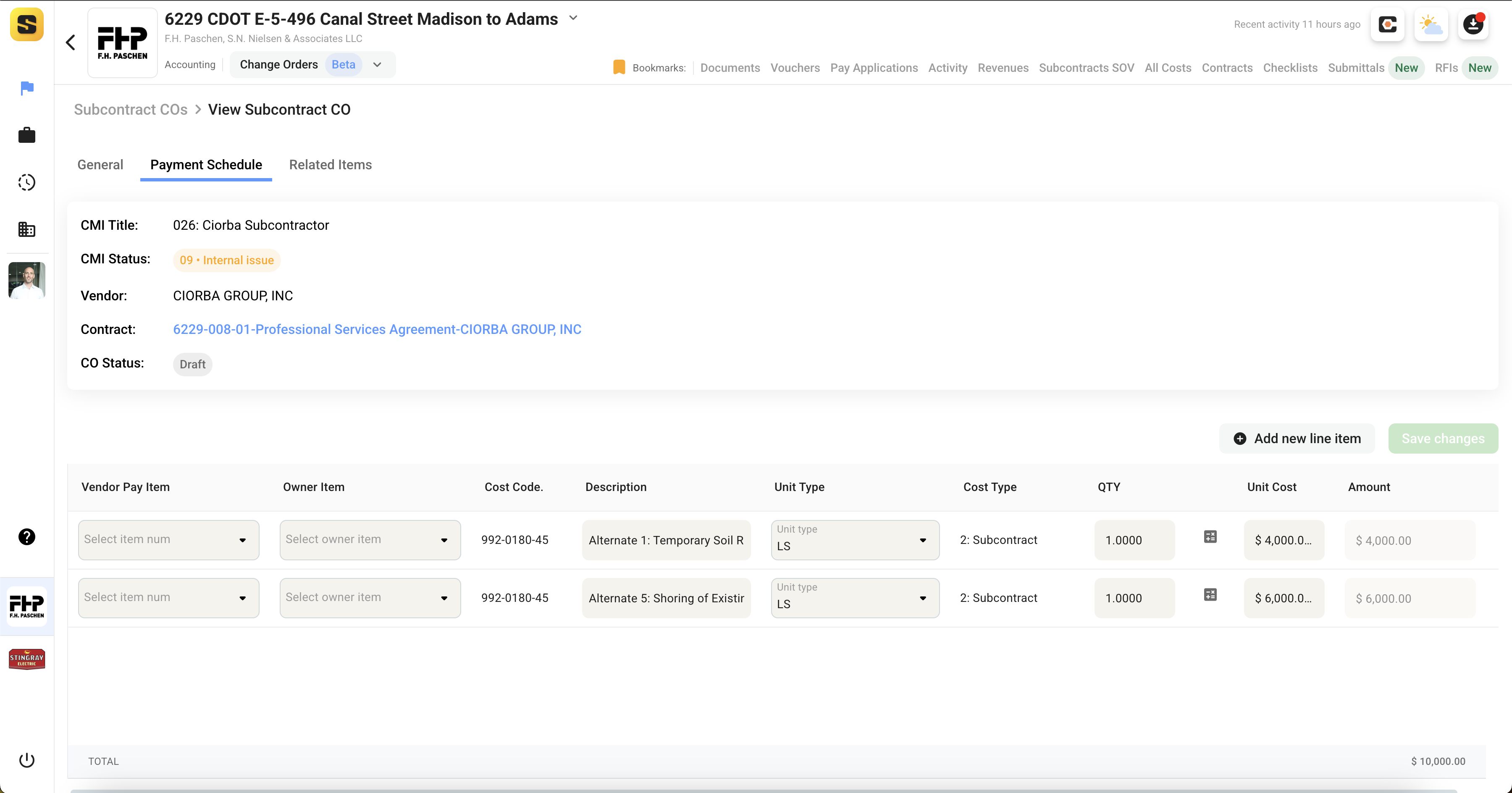
Payment Schedule
The Payment Schedule tab shows the line items included in the change order.
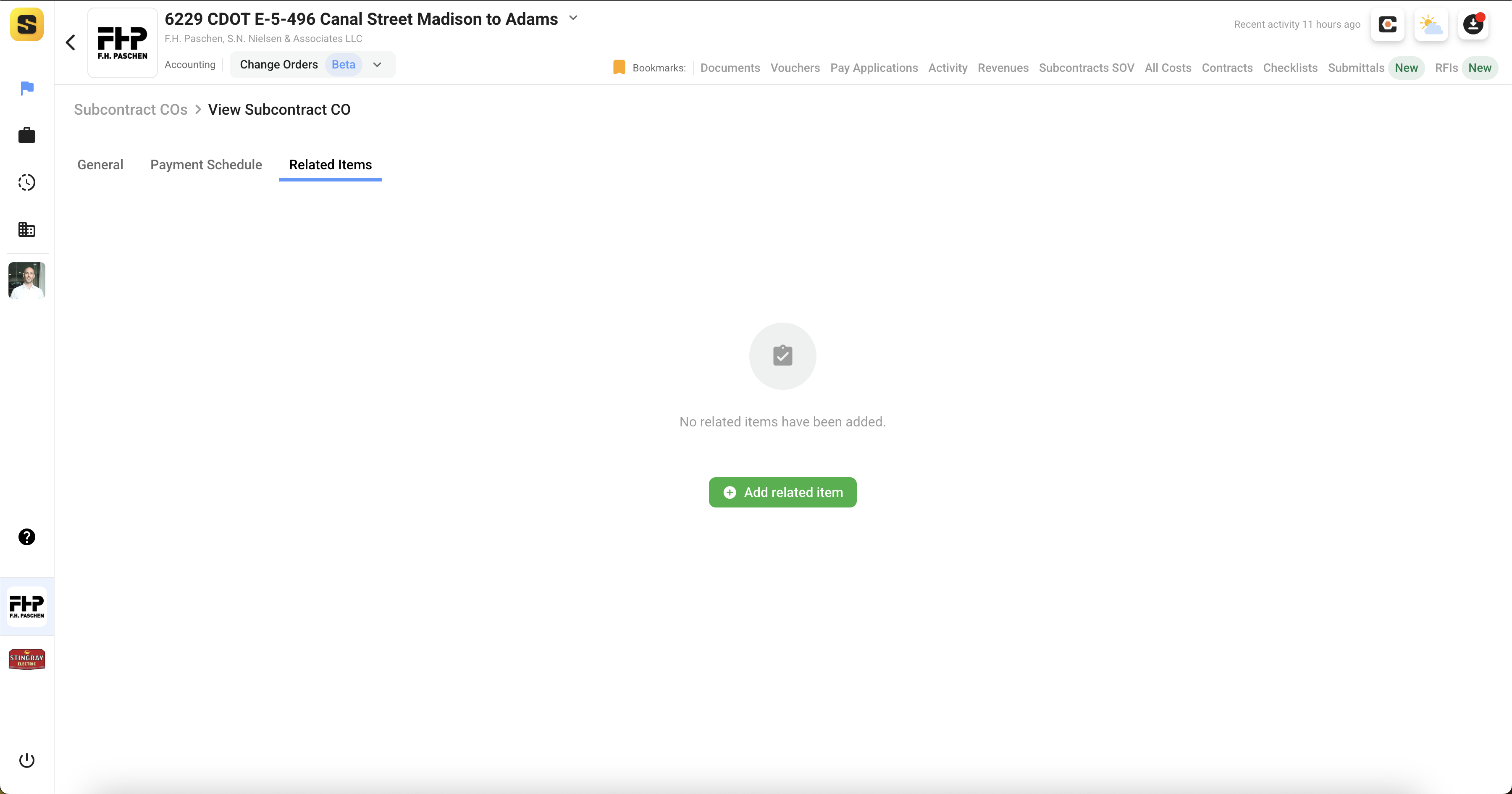
Related Items
The Related items tab is where users can link any additional related items to the change order including, RFIs, Submittals, Documents, etc.
Approving Subcontractor Change Order
Once the subcontractor change order status is changed to 'Approved' the values will be added to the subcontractor's current payment schedule and can be included in future pay applications.
Users can also add the change order to the 'Contracts' tab of the project where it will be linked to the Master Subcontract for that vendor. If your company has integrated the Adobe Sign API, Site Specs can also send the change order for digital signature. This is done by clicking the 'Send for signature' button in the subcontract change order detail view for 'Approved' change orders.
Owner Change Orders
Owner change orders are generated by first creating CMIs, then generating an 'Owner Change Order Request' (COR), from which user's can then create an Owner Change Order.
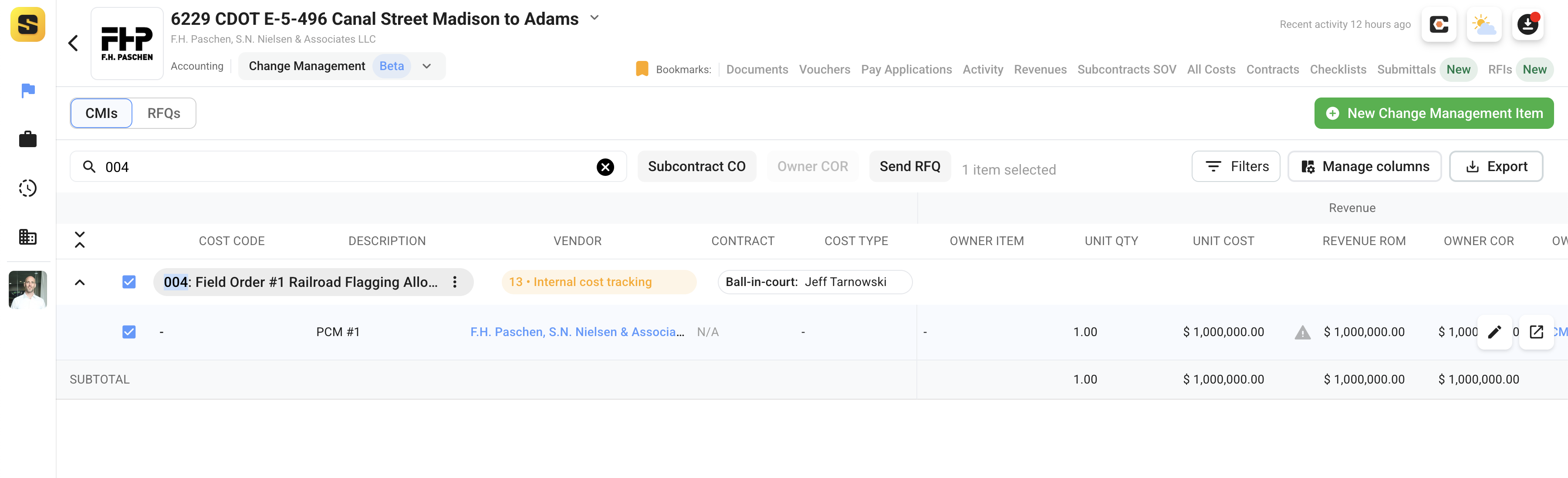
To create an Owner Change Order, navigate to the Change Management tab within your project and find the CMI you want to create a Change Order from. You can select all of the line items you wish to include in the owner change order. As you select line item's you will notice only the available options remain enabled (i.e. 'Subcontract CO', 'Owner COR', 'Send RFQ'). In this example, we will create an Owner Change Order Request (COR).
NOTE: Site Specs will not allow you to use line items in more than one Subcontractor CO, Owner COR, or Owner CO.
Creating an Owner Change Order Request
To create an Owner Change Order Request (COR), after selecting the line items, click 'Owner COR' beside the search bar.
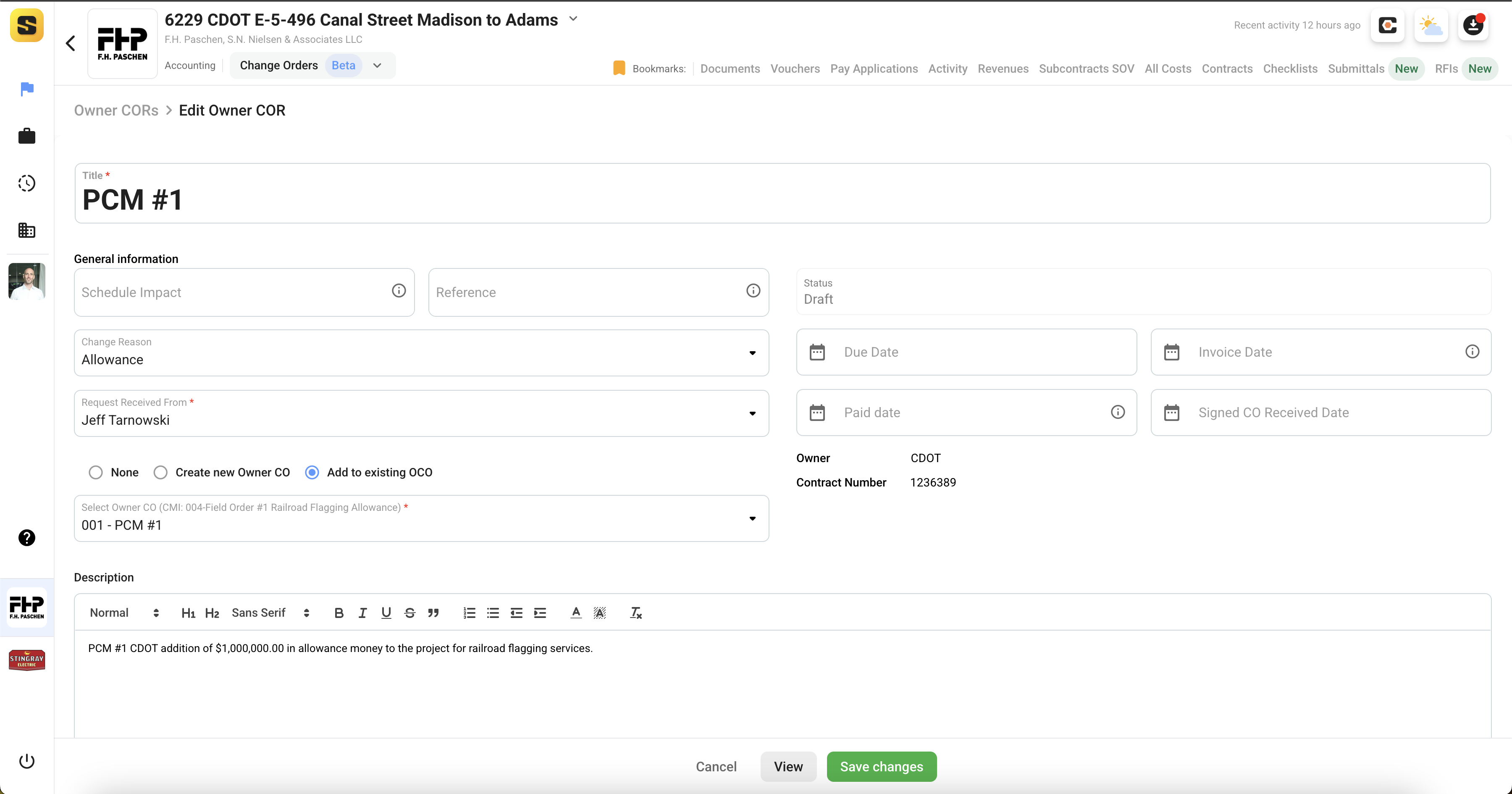
You will see the Owner COR creation form with the following fields.
Required Fields
- Title - A clear and descriptive name for the Change Order (refer to your company's standard operating procedures)
- Status - Current status of the Change Order
- Request Received From - The originator of the Change Order (often the subcontractor)
Optional Fields
- Schedule Impact - Number of days added to the project schedule if change order is approved
- Reference - Reference to any tools, documents, or materials associated with the change order
- Change Reason - Reason for the change in scope, price and/or schedule
- Due Date- Date the signed COR is due
- Invoice Date - Date the change order was invoiced
- Paid Date - Date the invoice for the change order was paid
- Signed CO Received Date - The date the signed CO was returned to the Designated Reviewer
- Description - Detailed description of the change including a default disclaimer
- Attachments - Any relevant documents, drawings, RFIs, correspondences, etc
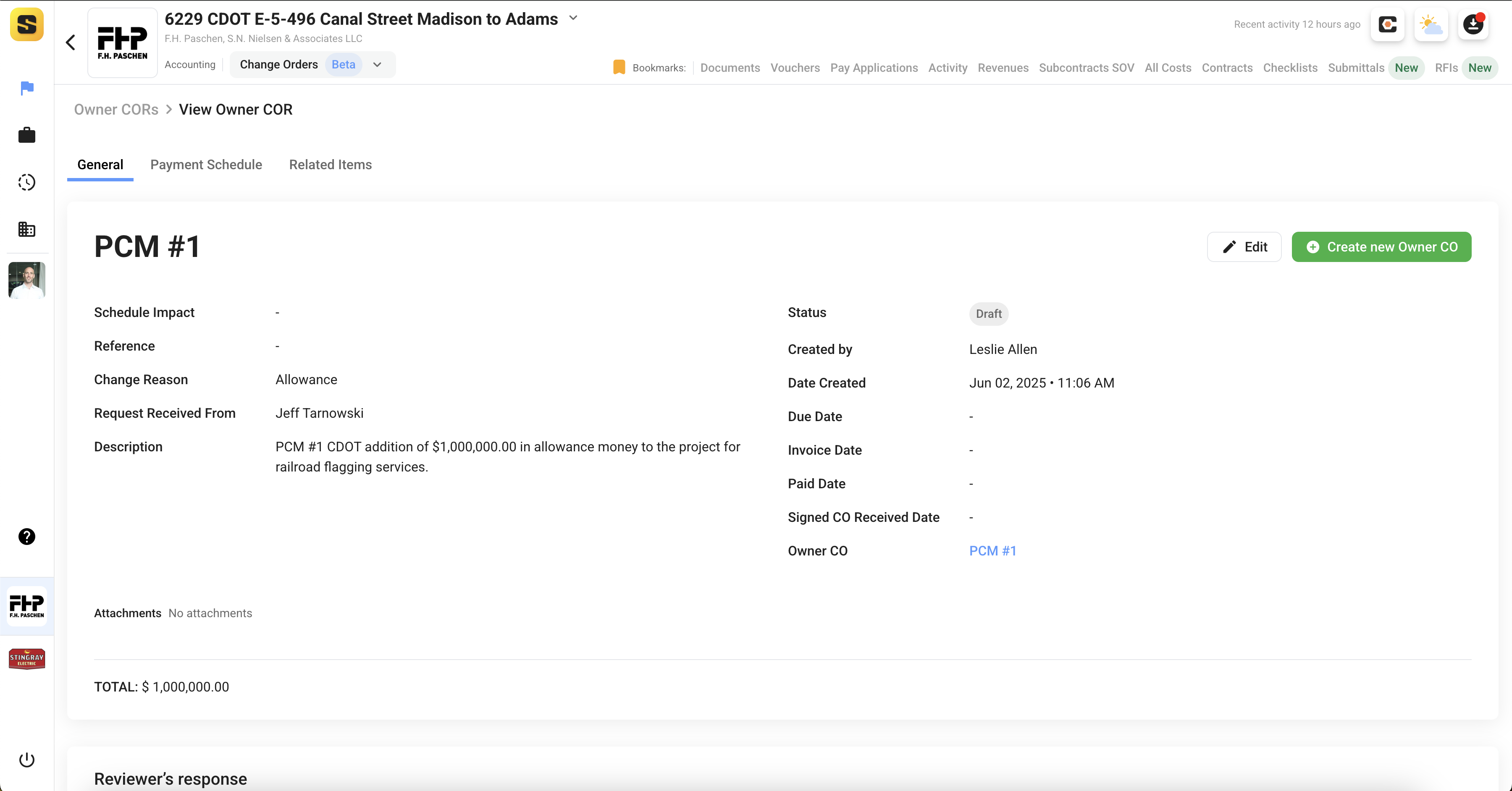
Once you save your owner change order request, you will see the owner COR details view with the General, Payment Schedule, and Related Items tabs.
General Tab
From the General Tab users can 'Create Owner CO' to create an owner change order (see below Creating an Owner Change Order).
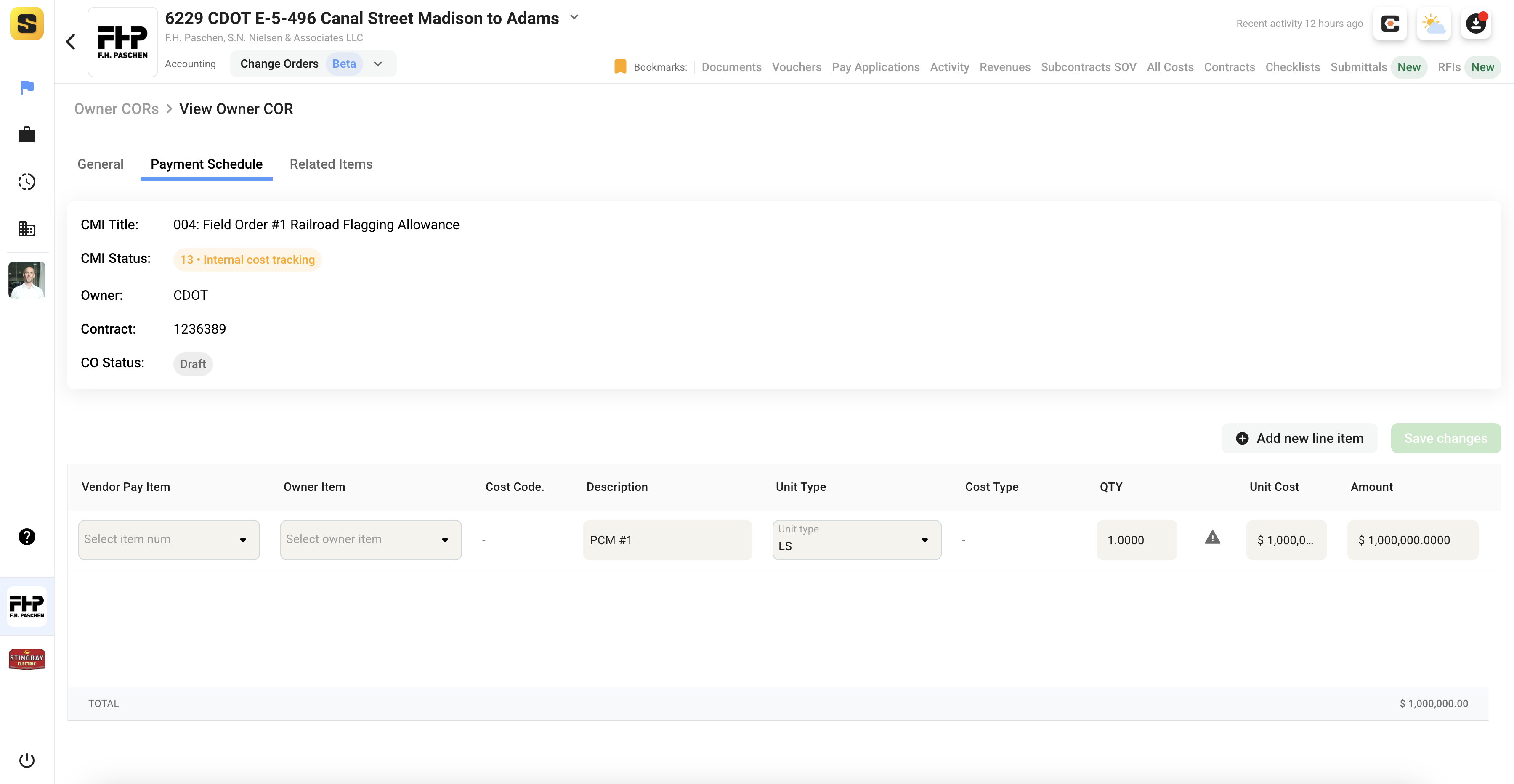
Payment Schedule
The Payment Schedule tab shows the line items included in the change order request.
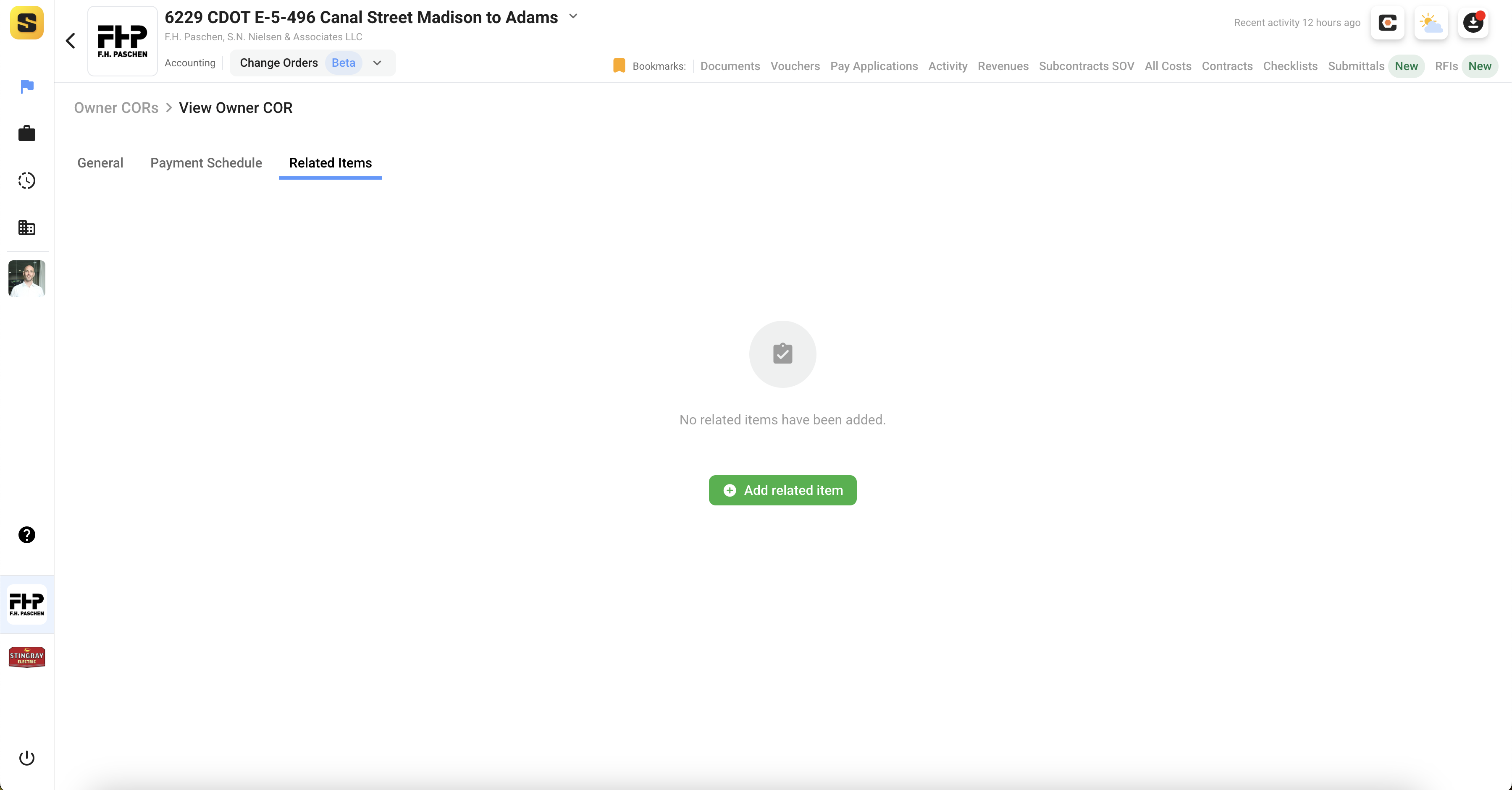
Related items
The Related items tab is where users can link any additional related items to the change order including, RFIs, Submittals, Documents, etc.
Creating an Owner Change Order
Once one or many owner change order requests have been generated, users can then create owner change orders composed of one or many change order requests.
To do this, users can either navigate into a specific owner change order request (COR), OR they can
Owner Change Order from Owner Change Order Requests (COR)
Click 'Create New Owner CO'
Owner Change Order from the Owner Change Order Log
Click 'Create New Owner CO'
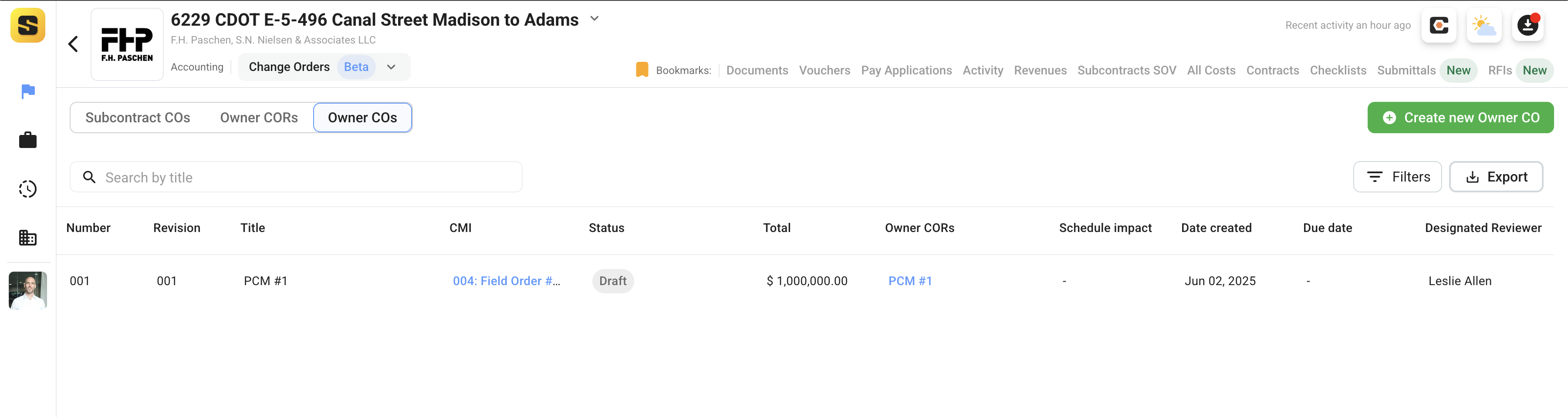
Once, user click 'Create New Owner CO', they then complete the owner change order creation form shown below.
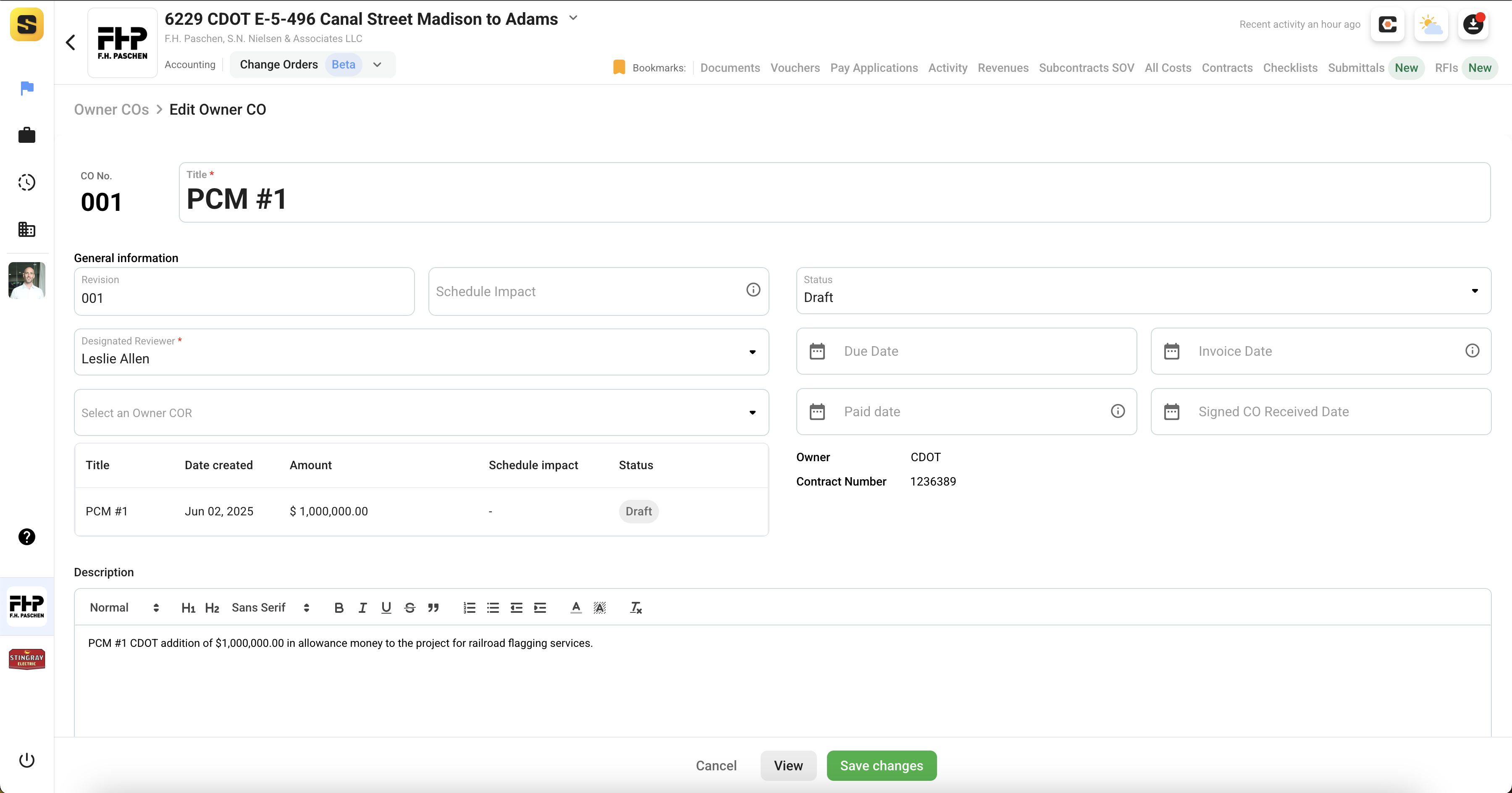
Required Fields
- Title - A clear and descriptive name for the change order (refer to your company's standard operating procedures)
- Status - Current status of the change order
- Designated Reviewer - The final approver of the owner change order (often the project manager)
Optional Fields
- Revision Number - Number of the revision
- Schedule Impact - Number of days added to the project schedule if change order is approved
- Due Date- Date the signed change order is due
- Invoice Date - Date the change order was invoiced
- Paid Date - Date the invoice for the change order was paid
- Signed CO Received Date - The date the signed CO was returned to the Designated Reviewer
- Select Owner COR - Select all owner CORs to include in this owner change order
- Description - Detailed description of the change including a default disclaimer
- Attachments - Any relevant documents, drawings, RFIs, correspondences, etc
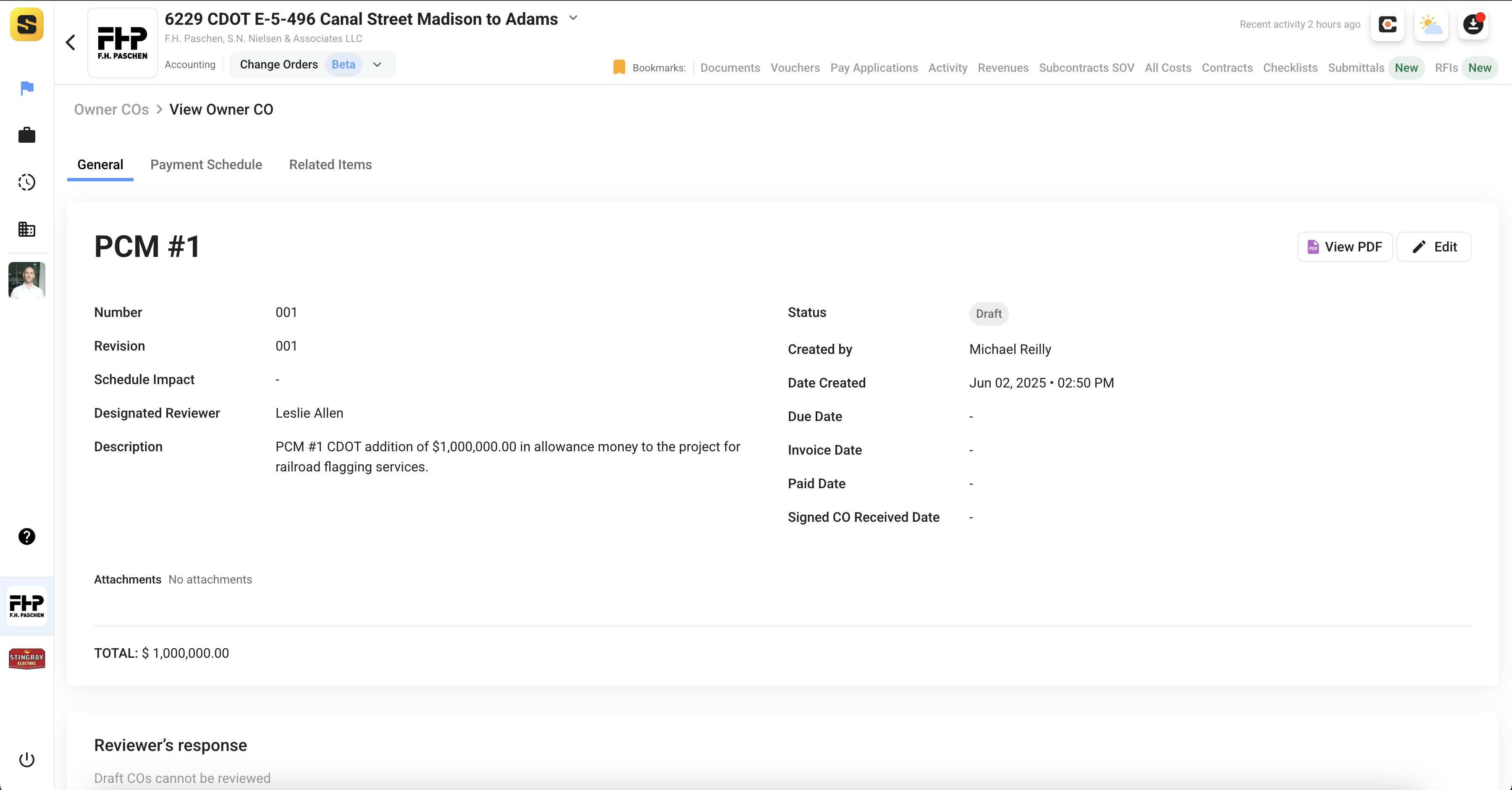
Once you save your owner change order, you will see the owner CO details view with the General, Payment Schedule, and Related Items tabs.
General Tab
From the General Tab users can 'View PDF' to view the owner change order document.
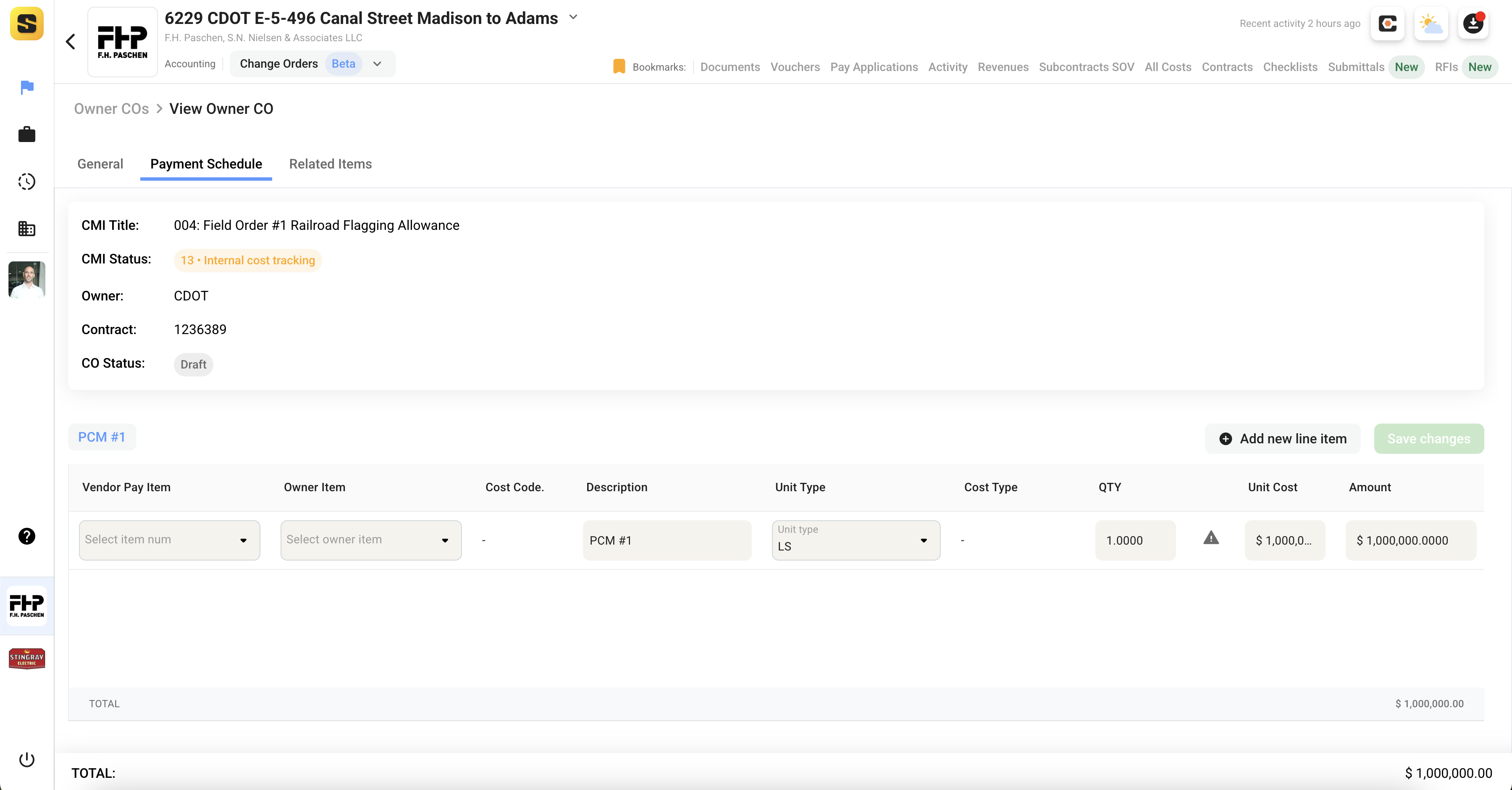
Payment Schedule
The Payment Schedule tab shows the line items included in the change order request. User's can edit and add line items as needed.
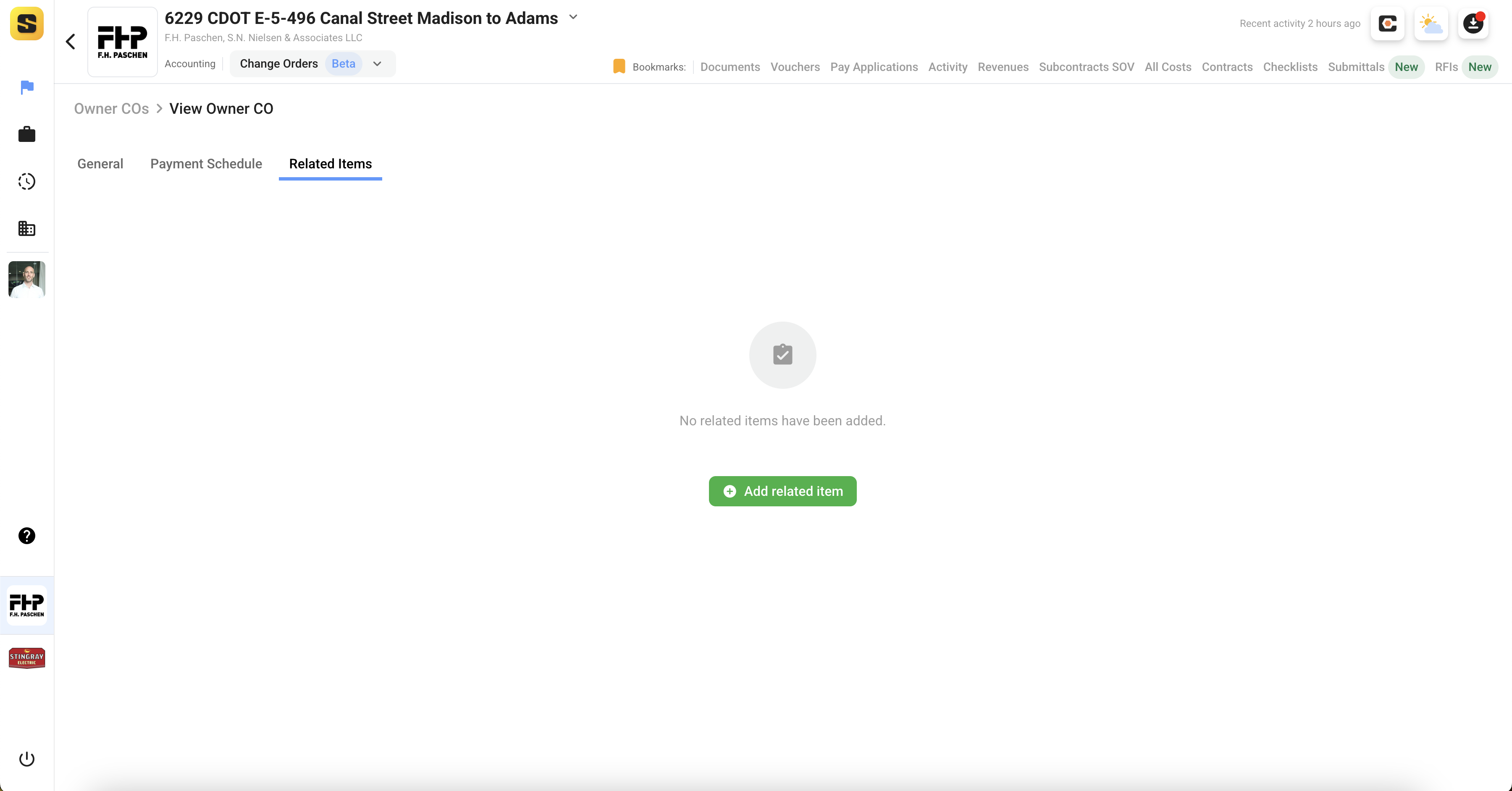
Related items
The Related items tab is where users can link any additional related items to the change order including, RFIs, Submittals, Documents, etc.
To Update the status of the owner change order go to the General tab of the change order, click 'Edit' and change the status. Once the status is Approved, the value of the change order will be added to the appropriate lines in the Revenues Payment Schedule.
Managing Change Orders
Once created, Change Orders can be managed through the Change Order log view.
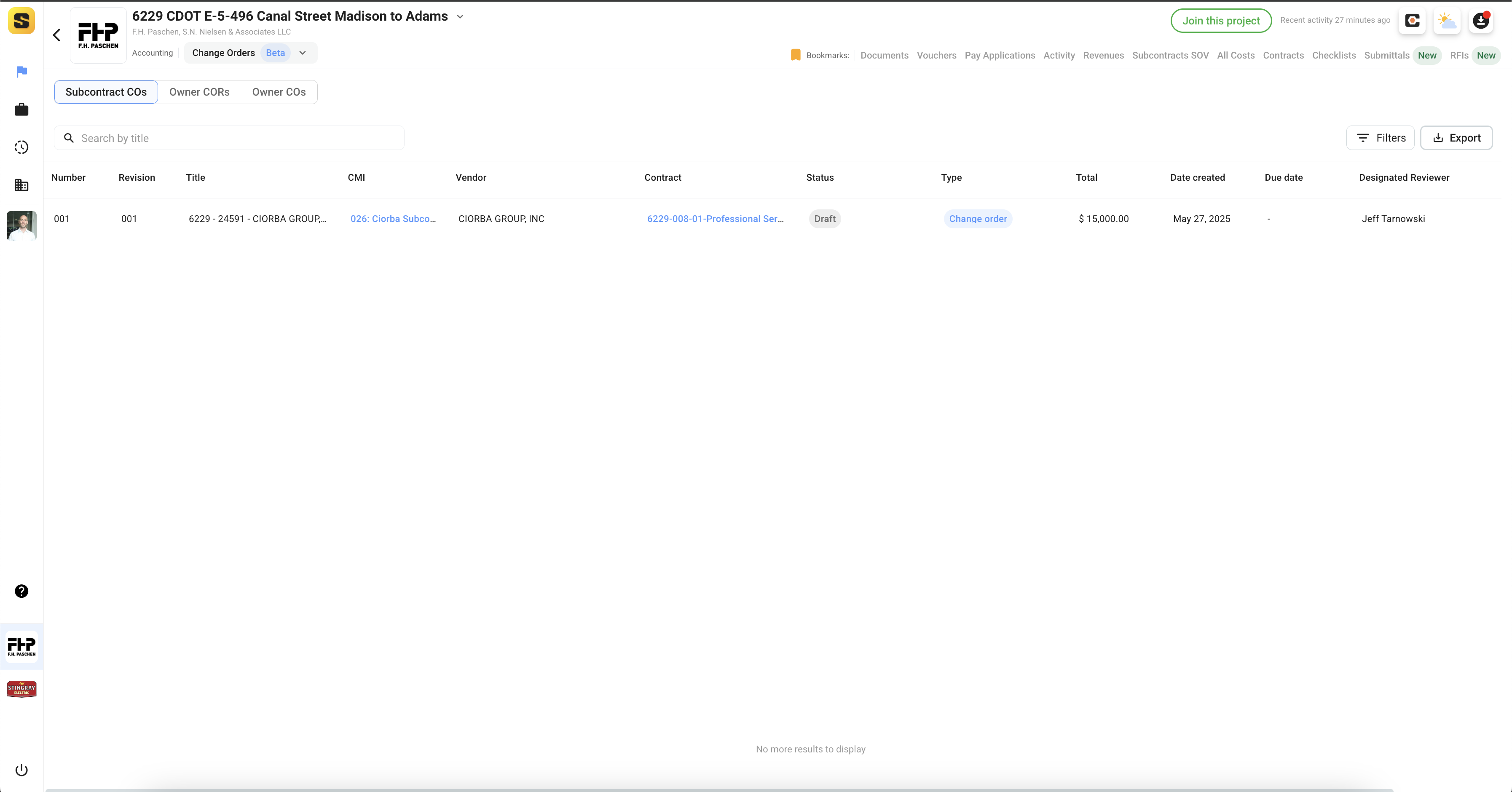
Users can:
- Filter and search Change Orders
- Manage columns to customize their view
- Track Change Order status and progress
- View related CMIs, RFQs, and documents
- Export Change Order data
Change Order Workflow
- Draft - Initial creation of the Change Order
- Pending Approval - Change Order is awaiting approval
- Approved - Change Order has been approved
- Executed - Change Order has been signed by all parties
- Rejected - Change Order has been rejected
- Closed - Change Order process is complete
Change Order Types
Owner Change Orders
- Document changes to the owner contract
- Impact project revenue
- Require owner approval
- Update owner payment schedule
Subcontractor Change Orders
- Document changes to subcontractor agreements
- Impact project costs
- Require subcontractor approval
- Update subcontractor payment schedule
Things to Consider
- Ensure all changes are properly documented and approved
- Include all relevant drawings, specifications, and documents
- Track the impact on both schedule and budget
- Maintain clear communication with all stakeholders
- Use the comments section to document important discussions
- Link related documents, CMIs, and RFQs for easy reference
- Consider using templates for common types of changes
- Keep detailed records of all approvals and signatures
Issues or Questions?
Contact Support at Support@SiteSpecs.io